
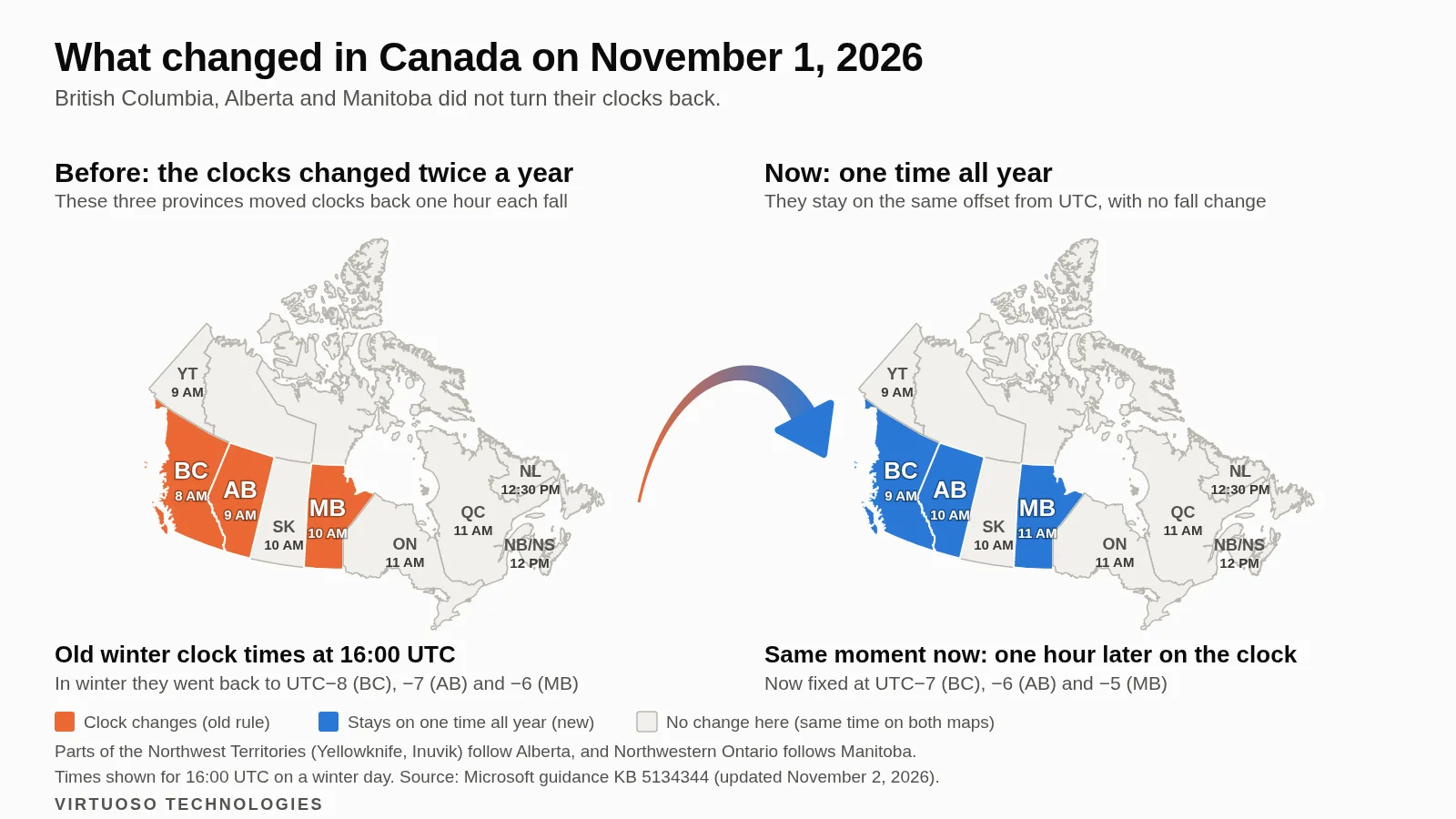
British Columbia kept its clocks where they were on November 1, and a lot of Microsoft software is still catching up. If your calendar looks an hour off, or an automated task fired at the wrong time, this is the likely reason. The fixes exist, but most of them are not automatic.
What changed with the BC time zone
BC, Alberta and Manitoba did not turn their clocks back this fall. Most of BC now stays at UTC-7 all year, Alberta at UTC-6 and Manitoba at UTC-5. Yellowknife and Inuvik follow Alberta, and Northwestern Ontario follows Manitoba.
Software does not simply know this. Windows and Microsoft 365 work from a list of time zone rules, and the old “Pacific Time” entry still follows the US clock changes. So Microsoft added new entries, including (UTC-07:00) Pacific Time (British Columbia) and (UTC-06:00) Mountain Time (Alberta).
Sign-in trouble is the newest part of this story. Neowin reported on November 5 that IT admins on Reddit are seeing Microsoft 365 desktop apps, such as Teams, Outlook, Word and OneDrive, fail to sign in on Windows PCs that were moved to the new Alberta time zone. The error is a generic “Something went wrong”. For those Alberta PCs, the reported fix was to choose the Saskatchewan zone (UTC-06:00) and restart. Some BC users reportedly had a similar problem and got sign-in working again by choosing a different zone, restarting, and then going back to the BC zone. Microsoft’s guidance page, last updated November 2, does not mention sign-in problems, and the cause is not confirmed. Treat these as stopgaps reported by admins, not official fixes. The calendar and scheduling problems are confirmed by Microsoft.
What is affected in Windows, Outlook and Teams
- Windows. Microsoft says updates with the new zones have been released for supported versions. PCs set to pick their time zone automatically should choose the new entry. Everything else has to be changed by hand. PCs on unsupported Windows versions will not get the update at all.
- Outlook and Exchange Online. You have to move to the new zone yourself. Meetings already on your calendar do not shift on their own, and recurring ones need a closer look. Microsoft is still looking into free/busy and working hours.
- Teams phone menus. Auto attendants may need their time zone updated manually. This matters if your “we are closed” greeting runs on a schedule.
- Power Automate and Azure Automation. Flows tied to a US-linked zone can run an hour off. For BC, Microsoft suggests Yukon Standard Time for now, or Arizona for flows that run on a recurring schedule, and says not to use the new BC time zone there yet.
- Power BI and Fabric. The new zones are not available yet. Microsoft suggests “(UTC-07:00) Arizona” for most of BC in the meantime.
- Teams and mobile Outlook. Teams on desktop, web and mobile, Shifts, and Outlook for iPhone, Android and Mac are still being checked.
What this means for your business
The risk is not dramatic, but it is easy to miss and it costs real time. A client shows up an hour early because a recurring meeting did not line up. Your phone system plays the after-hours message while staff are at their desks. A nightly report or invoice run lands an hour off and nobody notices for a week.
Mixed teams feel this most. One person on a new zone and another on the old one can see different times for the same meeting. If you work with people in Washington or elsewhere on US time, remember that the gap between you has changed too, and it will change again when the US springs forward.
How to fix BC time zone problems this week
- Update Windows. Install the latest updates on every PC, starting with anything that has been off or travelling. Note any machine on an unsupported version, because it needs a replacement plan.
- Check the time zone on each PC. In Windows, go to Settings, then Time & language, then Date & time. Most of BC should show (UTC-07:00) Pacific Time (British Columbia). Parts of southeastern BC that follow Alberta time should use the Alberta entry.
- Change Outlook. Select the new zone in Outlook’s calendar settings on each account, so Outlook and Windows agree.
- Review your calendar. Look at existing meetings taking place after November 1, especially repeating ones. Check with the organizer if a time looks wrong. Microsoft was targeting November 4 for an admin tool that corrects one-time meetings, but it has no date yet for recurring ones, so do not wait for it.
- Check anything that runs on a schedule. That means Teams auto attendants, Power Automate flows, reports, backups and booking pages. Some of these cannot use the new BC zone yet, so follow the temporary choices above. Bookings has new options for new bookings, so confirm yours is set correctly.
- Change the zone, not the clock, and escalate what remains. Do not set a PC’s clock by hand to fix the hour, because that can cause new problems. If an app will not sign in after the change, ask your IT person to try the temporary zone switch and restart described above, then return the PC to the BC zone. If something still behaves oddly, have your administrator open a support case in the Microsoft 365 admin center with #CanadaTimeZone in the title, as Microsoft asks.
Want someone to check it for you?
Virtuoso Technologies looks after Windows and Microsoft 365 for businesses in Abbotsford, Langley and across the Fraser Valley. If you would rather not walk through every PC and calendar yourself, see our IT support or contact us and we can go through it with you.
Source: Neowin. Details come from Microsoft’s Canada 2026 time zone guidance and Message Center notice MC1510951 (independent archive), as of November 5, 2026.