
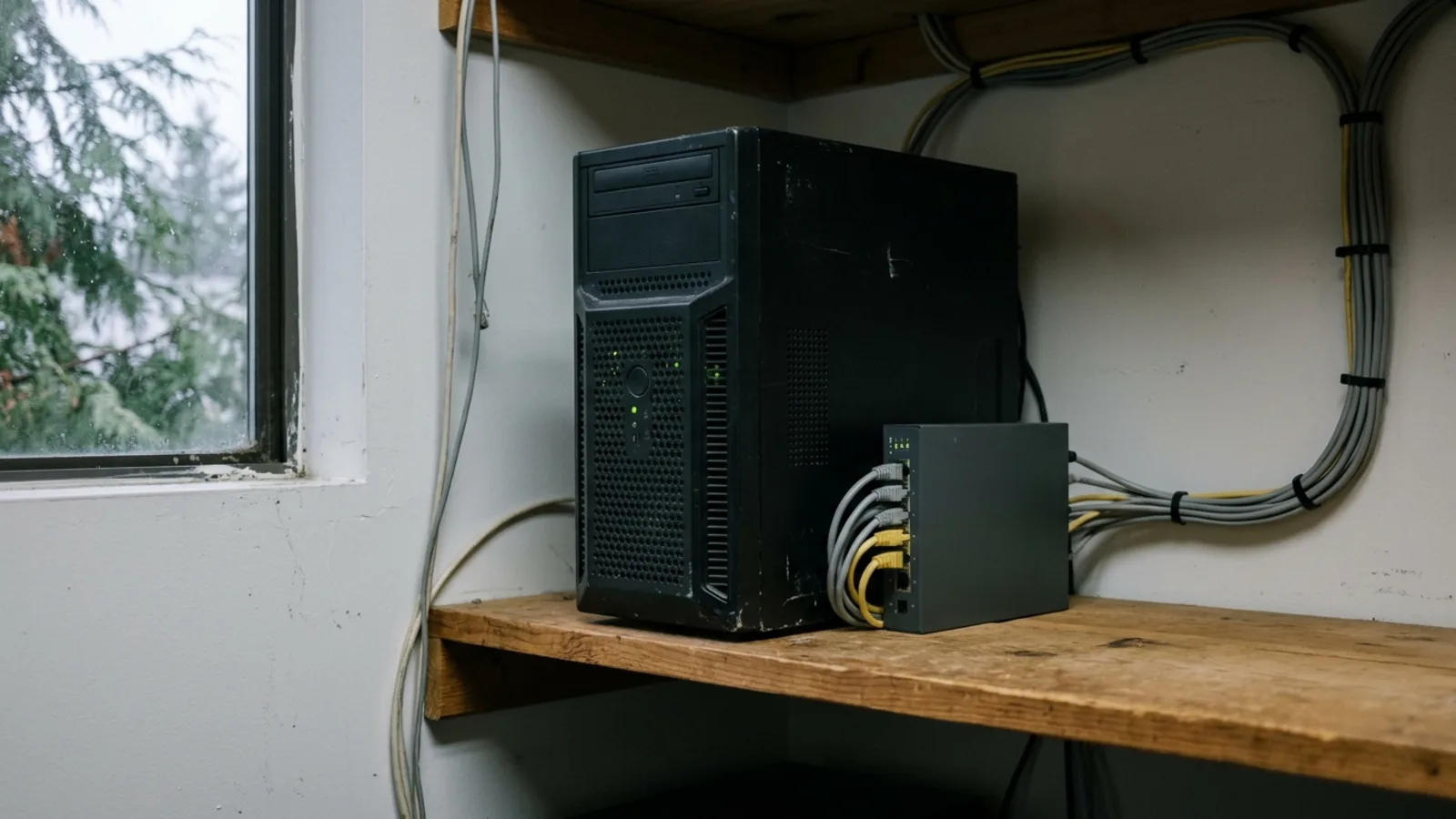
Windows Server 2016 end of life is January 12, 2027. After that date Microsoft stops sending security updates unless you pay for Extended Security Updates, so a 2016 server in your office keeps running but stops being patched. Plan the move now, and test your older equipment first: Microsoft has just said the next version, Windows Server 2028, will start out locked down by default.
What happens on January 12, 2027
Windows Server 2016 left mainstream support in January 2022, which means no new features, only security fixes. On January 12, 2027 those security fixes stop too. According to Microsoft’s lifecycle page, this covers the Standard, Datacenter and Essentials editions, which are the ones most small offices have.
Nothing switches off that day. The server still starts, the shared folders still open and your accounting software still runs. The difference is that any new security hole found after that date stays open on your server for good. For a machine that holds your files and often controls who can sign in, that is a risk worth planning around, and it is a question cyber insurers ask. Our guide to cyber insurance requirements for BC small businesses covers what they look for.
Your options, in plain terms
- Upgrade to a supported Windows Server. Windows Server 2025 is the current version. This is the usual path when you need a server in the office for files, sign-ins or software that has to run locally.
- Move the work to the cloud. Many small offices can move shared files to SharePoint and OneDrive and sign-ins to Microsoft 365, and retire the server altogether. It depends on what else the server does.
- Buy Extended Security Updates (ESU). Microsoft sells up to three more years of security-only updates, to January 2030, sold through Azure Arc. It buys time but does not fix anything, and it is an ongoing cost, so it suits a server you plan to retire.
- Do nothing. It keeps running, unpatched. We do not recommend it for any server that is connected to the internet or holds client information.
Windows Server 2028 will be secure by default
At its Ignite conference on November 17, Microsoft announced Windows Server 2028. Preview builds are out for testing now, and Microsoft has not given a release date. The big change is that it starts locked down: in the current previews, a Server Core install comes with hundreds of security settings already switched on from the first boot. Until now, a new Windows Server was set up to work with almost anything, and hardening it was a separate job that someone had to remember to do.
Microsoft’s list of what is on from day one includes:
- Stronger sign-ins: Kerberos is preferred over the older NTLM method, strong passwords and account lockout are enforced, and guest sign-in is off.
- Protected file sharing: shared folders use SMB signing and encryption.
- A firewall on everywhere: the Windows firewall is on for every network type, and older ways of finding and talking to other computers are off.
- Safer remote access: Remote Desktop needs Network Level Authentication and encryption, and remote management will not accept basic, unencrypted logins.
Microsoft is open about the cost: some things that work on Windows Server 2025 may fail on 2028 until they are changed, including older protocols, older sign-in methods and some management tools and scripts. Admins can loosen groups of settings when a workload needs it, and Microsoft says blocking NTLM entirely will come in a later preview.
What this means for your business
This is good news. A server that is safe out of the box is better than one that depends on a checklist. But it changes how you should plan a server move, whether you go to 2025 now or 2028 later. Newer Windows versions keep tightening the same defaults, and the equipment most likely to break is the equipment nobody has looked at in years.
When we plan a server replacement for a small office in the Fraser Valley, these are the things we test before the old server is switched off:
- The copier or scanner that scans to a shared folder. Older models often only speak older file-sharing methods and stop working when signing is required.
- An older NAS or backup box that copies files to or from the server.
- Accounting, practice or line-of-business software that runs from the server, and whether the vendor supports the new version.
- Shared folders anyone can open without a password, a quick fix from years ago that guest sign-in rules will close.
- Remote access for staff working from home, and any scripts or scheduled tasks someone set up long ago.
A firewall that is on by default also means the old habit of turning it off to make something work is no longer the easy option. If your network edge is a provider’s router, our guide on whether a small business needs a firewall explains the difference.
Steps to take before January
- Confirm what you have. Check which Windows Server version runs in your office and what it does: files, sign-ins, printing, software, backups.
- List everything that talks to it, including copiers, scanners, NAS boxes and remote access.
- Decide the path: upgrade, move to Microsoft 365, or buy ESU as a bridge with a firm end date.
- Test before you switch over. Try scan-to-folder, your software and remote access against the new setup before the old server goes away.
- Check your backups on the new setup, and restore at least one file to prove they work.
If nobody is sure what the server does, start with step 1. Our switching IT providers checklist has a section on getting that information written down.
Not sure what your server does?
Our free Cyber + AI Readiness Check takes about five minutes and shows where your gaps are. For a server move, our managed IT support and cyber security teams plan the upgrade or the move to Microsoft 365, test the older equipment first and schedule the switch around your working hours, for businesses that use IT support in Abbotsford, IT support in Langley and across the Fraser Valley. Call 604-375-2629 and we will tell you what is fine and what needs fixing.