
Nothing makes a business look less reliable than a phone that cuts out mid-sentence. The good news is that VoIP problems are rarely mysterious. Voice is just small packets of data, and when they arrive late, out of order or not at all you hear it immediately. Almost every complaint we get, from Cloverdale trades companies to clinics in Newton, comes down to a short list of network causes. Here is how to tell which one you have and what to do about it.
Match the symptom to the cause
The way a call fails tells you where to look. Before changing anything, get people to describe exactly what they hear.
- Choppy, robotic or underwater audio. Packets are arriving unevenly (jitter) or being dropped (packet loss). Usually the internet connection, Wi-Fi, or a congested link.
- Calls drop at the same point every time, often around 30 seconds or 15 minutes. A timer is expiring. Almost always the router’s SIP ALG feature or a NAT session timeout.
- One-way audio: you hear them, they cannot hear you, or the reverse. Also a router problem, most often SIP ALG or double NAT. The call sets up fine, but the audio stream is being sent to the wrong address.
- Echo. Usually the far end, a speakerphone at high volume, or a cheap headset. Rarely the network.
- Delay, so people talk over each other. High latency. Satellite or heavily loaded connections, or traffic going a long way round to the provider.
- Phones showing “no service” or “registration failed”. The phone cannot reach the provider: a firewall rule, a DNS problem or an internet outage.
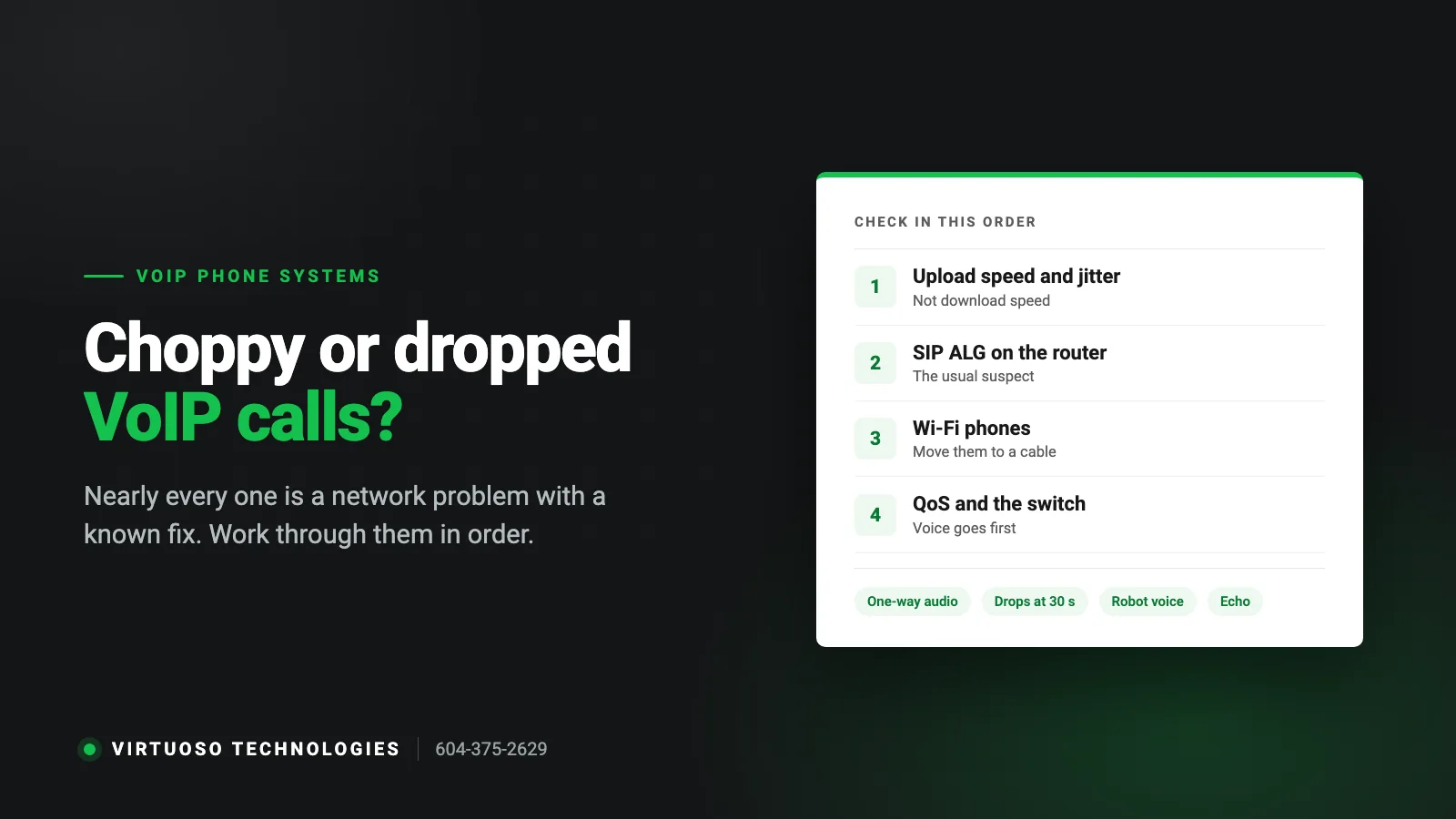
1. Check the connection, especially upload and jitter
A single call needs roughly 100 kbps in each direction, so even ten simultaneous calls fit inside 1 Mbps. Bandwidth is almost never the issue. What matters is consistency: how steady the upload is, how much jitter there is, and whether packets are being lost. Run a VoIP-specific speed test (your provider will point you to one) from a wired computer during a busy part of the day. As a rule of thumb, jitter under 20 ms and packet loss under 1% is fine; above that you will hear it.
If the numbers are bad on a wired computer plugged straight into the modem, the problem is the connection itself and it is a conversation with your internet provider, or a reason to consider a second connection for failover. If the numbers are fine at the modem but bad at the desk, the problem is inside your building, which is the good news: it is fixable.
2. Turn off SIP ALG on the router
This is the one we check first on any new site. SIP ALG (Application Layer Gateway) is a feature on many routers, including most of the modem/router combos supplied by internet providers, that tries to help VoIP by rewriting the addresses inside SIP packets. It nearly always makes things worse, causing one-way audio, phones that lose registration and calls that drop at fixed intervals. Log in to the router, find SIP ALG (sometimes under Firewall, NAT or Advanced), disable it and reboot the router and the phones. If the router does not let you turn it off, put it in bridge mode and use a proper business router behind it.
3. Get the phones off Wi-Fi
Wi-Fi is fine for a laptop loading a web page, because a page can wait a fraction of a second. A voice call cannot. Interference from the microwave, a neighbour’s access point or a busy channel shows up as choppy audio, and it comes and goes, which makes it maddening to diagnose. Desk phones should be on a cable. Where that is not possible, a dedicated access point on a clean channel and a separate voice network helps, but a cable always wins. The same applies to the softphone app on a laptop: if quality is poor, plug in.
4. Make sure voice goes first: QoS and the switch
When someone in the office starts a large upload, a cloud backup kicks in or the security cameras push video to the cloud, the connection fills up and voice packets queue behind the rest. Quality of Service (QoS) on the router tells it to send voice traffic first. On a business router this is a few minutes of setup, tagging the phones’ traffic or the voice VLAN as high priority. Consumer routers often have no usable QoS at all, which is another argument for replacing the ISP box.
Check the switch as well. Phones are often daisy-chained through an old unmanaged switch found in a drawer, sometimes running at 100 Mbps with a failing port. A managed PoE switch powers the phones, puts them on their own VLAN and lets you see errors per port, which turns a guessing game into a two-minute look.
5. Double NAT and the cable modem
If your internet provider’s modem is doing routing and you have your own router behind it, traffic is being translated twice. VoIP dislikes this. Symptoms are one-way audio and phones dropping registration. The fix is to put the provider’s box into bridge mode so your own router handles everything, or remove the second router. While you are there, make sure the firewall is not timing out idle UDP sessions too quickly; a NAT timeout shorter than the phones’ keep-alive interval produces the classic drop at a fixed number of minutes.
6. Rule out the phone, headset and firmware
If one person has problems and nobody else does, swap their handset or headset with a colleague’s before touching the network. Bluetooth headsets in a room full of Bluetooth devices, cheap USB headsets and worn-out handset cords all produce crackle and echo that has nothing to do with VoIP. Also check that the phones are on current firmware; manufacturers fix audio and registration bugs regularly and a phone that has never been updated may be years behind.
When to stop troubleshooting and call someone
If you have disabled SIP ALG, moved phones to cables and the connection tests clean but calls still fail, the remaining causes are things like a misconfigured firewall, a provider-side routing issue or a failing piece of hardware, and they are quicker to find with the right tools than by trial and error. A proper VoIP setup includes a network check before the phones go in, precisely so none of this happens on day one. Our VoIP phone systems page explains how we install them, and the VoIP for small business guide covers what to check before you switch.
Questions Surrey and Langley businesses ask us about call quality
Is my internet fast enough for VoIP?
Almost certainly. A call uses about 100 kbps each way, so bandwidth is rarely the limit. What matters is a steady upload with low jitter and no packet loss. Test from a wired computer at a busy time of day; if jitter is under 20 ms and packet loss under 1%, the connection is fine and the problem is inside the building.
Why do my VoIP calls drop after exactly 30 seconds?
A call that always drops at the same moment is a timer, not a signal problem. The usual cause is SIP ALG on the router interfering with the call setup, or a NAT session timeout on the firewall that is shorter than the phones’ keep-alive interval. Disable SIP ALG first; if that does not fix it, lengthen the UDP timeout.
Can I run VoIP phones over Wi-Fi?
You can, but you will get complaints. Wi-Fi interference shows up as choppy audio that comes and goes. Put desk phones on a cable wherever possible and reserve Wi-Fi for the mobile app.
Will a new router fix VoIP problems?
If the current router is the modem/router combo from the internet provider, very often yes. Those boxes usually have SIP ALG that cannot be turned off, no useful QoS and slow firmware updates. A business-grade router behind the modem in bridge mode fixes several problems at once.
Does VoIP work during a power or internet outage?
Not on the desk phones, unless you have battery backup for the network and a second internet connection. The advantage of VoIP is that your number is not tied to the building: calls can be forwarded to cell phones automatically, so customers still get through while the office is dark.
Need a hand with your IT, phones or website?
We look after IT, phone systems, websites and marketing for small businesses across Surrey, Langley and Metro Vancouver. Call 604-375-2629 or send us a message and tell us what is going on.