
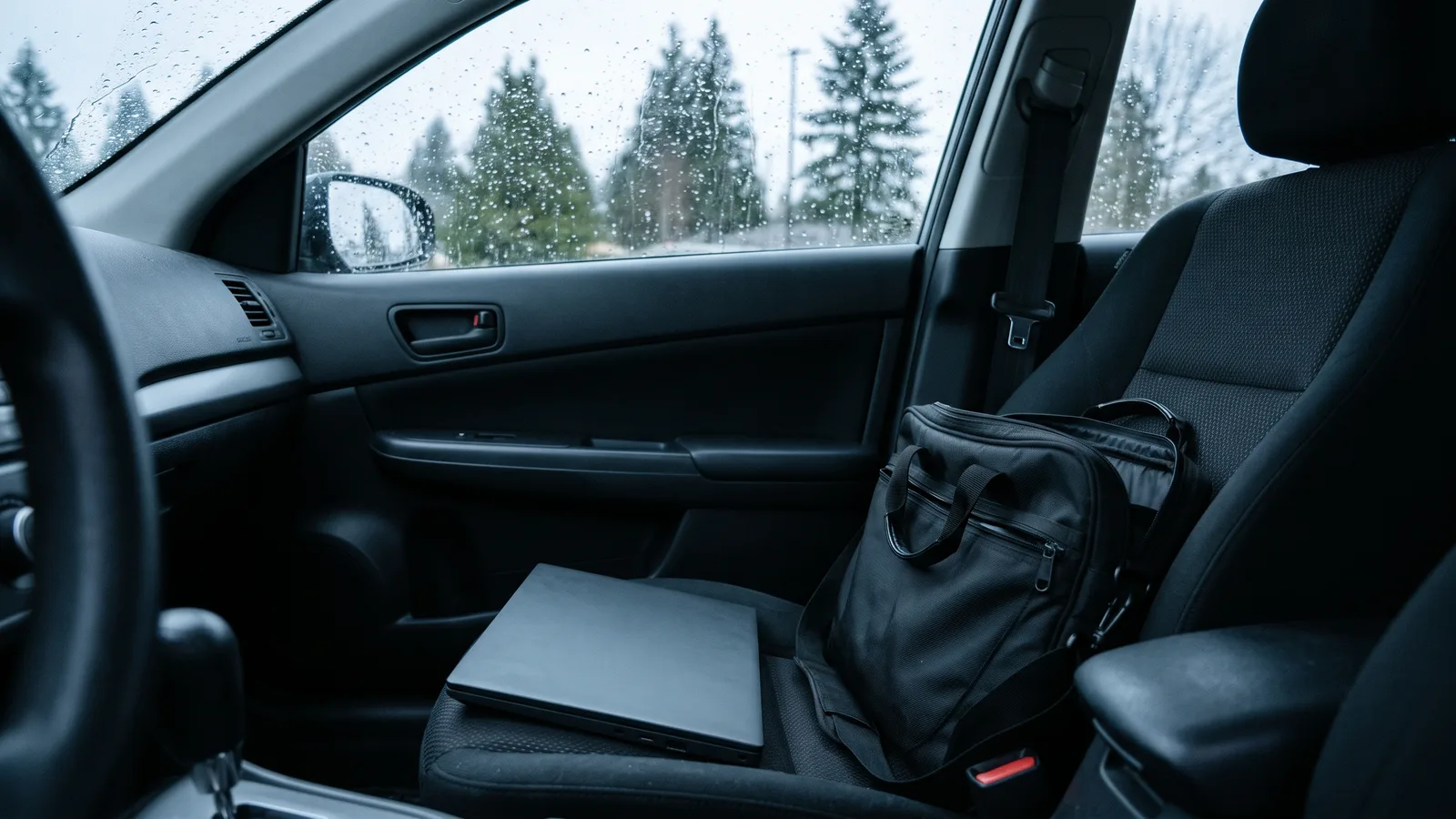
Work laptop stolen or lost? The first job is not the laptop itself: it is the account and the data on it. Reset the person’s password, sign them out of every session, and check that the drive is encrypted with BitLocker. Microsoft is now testing Remote Lock for Windows 11, which will let IT lock a missing PC from Intune without wiping it, but it only helps offices that set things up before anything goes missing.
What to do in the first hour
Laptops go missing in ordinary ways: a bag left on the SkyTrain, a car broken into in a parking lot, a laptop forgotten at a coffee shop after a client meeting. Whatever happened, work through these steps in order:
- Tell whoever looks after your IT straight away. Note when and where it was last seen, and whether it was signed in, asleep or shut down.
- Reset the person’s Microsoft 365 password. In the Microsoft 365 admin centre, open the user and choose Reset password.
- Sign them out everywhere. On the same user page, choose Sign out of all sessions so Outlook, Teams and OneDrive on the missing laptop lose access.
- Check for saved passwords. If the person kept passwords in the browser or a password manager on that laptop, change the important ones: banking, payroll, your website and your domain registrar.
- Check BitLocker. If the drive was encrypted, the files are very hard to read without the recovery key. If it was not, assume the files on the laptop itself are exposed.
- Wipe it if it is gone for good. If the laptop is managed in Microsoft Intune, an admin can send a Wipe so it erases itself the next time it connects.
- File a police report and call your insurer. Insurers usually want the report number, and cyber policies often have their own steps for lost devices.
Why Intune’s Remote lock is greyed out for Windows
Many owners with Microsoft 365 Business Premium already have Microsoft Intune, the tool for managing company devices. Business Premium includes Intune Plan 1. Intune has had a Remote lock button for years, but Microsoft’s own documentation lists it for phones, tablets and Macs, not Windows PCs. That is why IT admins searching “Intune remote lock Windows” find the option greyed out. Until now, a missing Windows laptop left two choices: wait, or wipe it.
What Windows 11 Remote Lock will add
Microsoft has published a preview of Remote Lock for Windows and started testing it in an experimental Windows Insider build. Here is how it works, according to Microsoft:
- An admin locks the PC from Intune. Windows signs out every session, hides all sign-in options and shows a screen saying your organization has locked the device.
- You can add a reason and a recovery hint, such as your help desk phone number, so an honest finder knows who to call.
- Nothing is erased. The lock stays on through restarts and while the laptop is offline.
- Only an admin can unlock it, remotely through Intune. No PIN, password or local admin account works on a locked PC.
That middle ground is useful. A laptop left in a client’s boardroom can be locked tonight and unlocked tomorrow when it comes back, with every file still in place. Wiping means a full rebuild and restoring the person’s work.
The catches
Remote Lock is not a magic button, and Microsoft says so:
- It waits for a check-in. If the laptop is already off or offline, the lock applies only when it next connects to the internet.
- It does not touch the account. The person’s password still works on other devices, so you still need steps 2 and 3 above.
- It does not block other ways in. Safe Mode, the Windows recovery screens and booting from a USB stick still work. Microsoft recommends keeping BitLocker on so the drive stays unreadable that way.
- It needs the right setup. The PC must run Windows Pro, Enterprise or Education and be joined to Microsoft Entra ID or enrolled in Intune. In the preview it is set up with a custom policy, not a simple button.
- It is still a preview. Microsoft has not given a release date, and features in that test channel may change before they reach regular Windows 11.
What this means for your business
The new feature is a good reason to check the basics now, because none of the steps above work if they were not set up in advance. When we review a small office in the Fraser Valley, these are the gaps we check first: laptops set up at home with a personal or local account, BitLocker never switched on, and nobody sure which laptops the company even owns. A PC signed in with a local account sits outside Microsoft 365 entirely; our guide to using a local account in Windows 11 explains the difference, and for company laptops, a work account is the better choice.
Before anything goes missing:
- Keep a list of company laptops: who has each one, the serial number and the Windows edition.
- Turn on BitLocker on every work laptop and keep the recovery keys stored in your Microsoft 365 tenant, not on a sticky note.
- Sign laptops in with work accounts and enrol them in Intune if your plan includes it.
- Keep work files in OneDrive or SharePoint, so a missing laptop costs a few hours of setup, not lost work.
- Use two-factor sign-in on every account, so a stolen password alone is not enough.
These are also questions cyber insurers now ask. Our article on cyber insurance requirements for BC small businesses covers what they look for. And if a client’s personal information was on the laptop, the Office of the Information and Privacy Commissioner for BC has guidance on responding to a privacy breach.
Want to know where you stand?
Our free Cyber + AI Readiness Check takes about five minutes and shows where the gaps are. For hands-on help, our managed IT support and cyber security teams set up encryption, device lists and account controls for offices that use IT support in Langley, IT support in Abbotsford and across the Fraser Valley. If you are weighing options, our comparison of hourly IT support and managed IT services explains the costs. Call 604-375-2629 and we will tell you what is fine and what needs fixing.